Tutorial
Select the layout
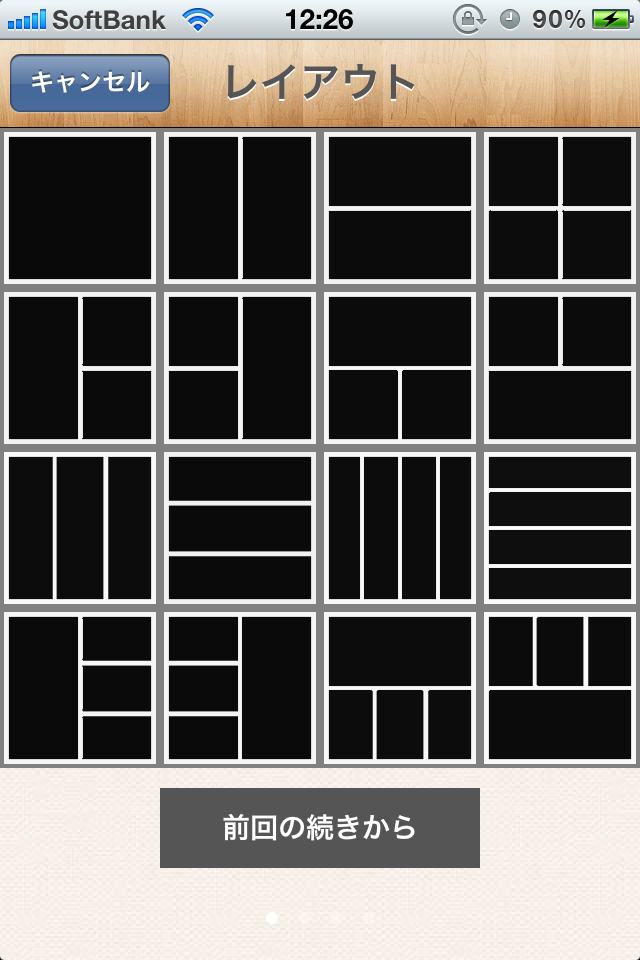
Select a layout
↓
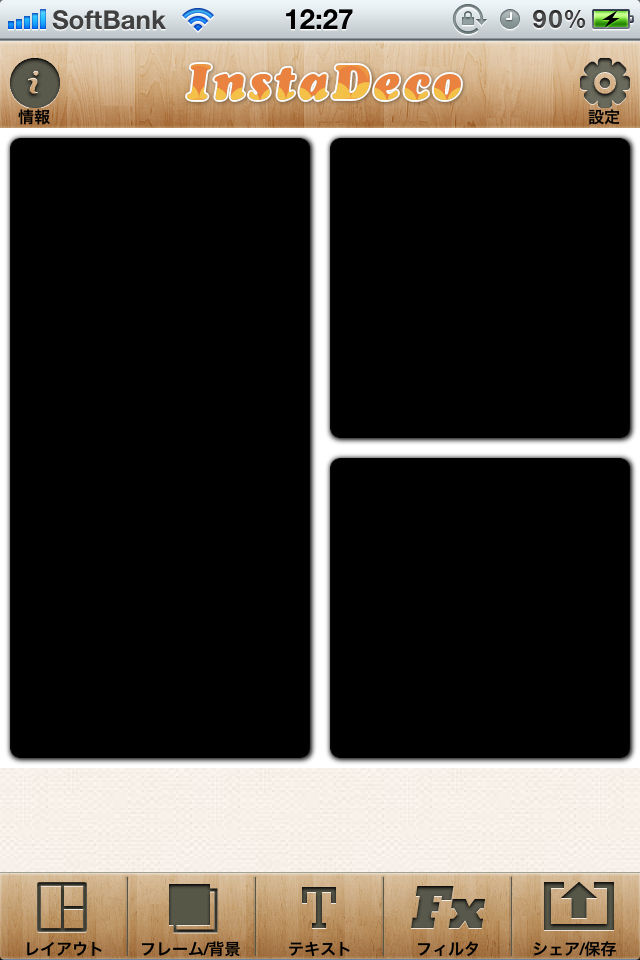
Put the photo
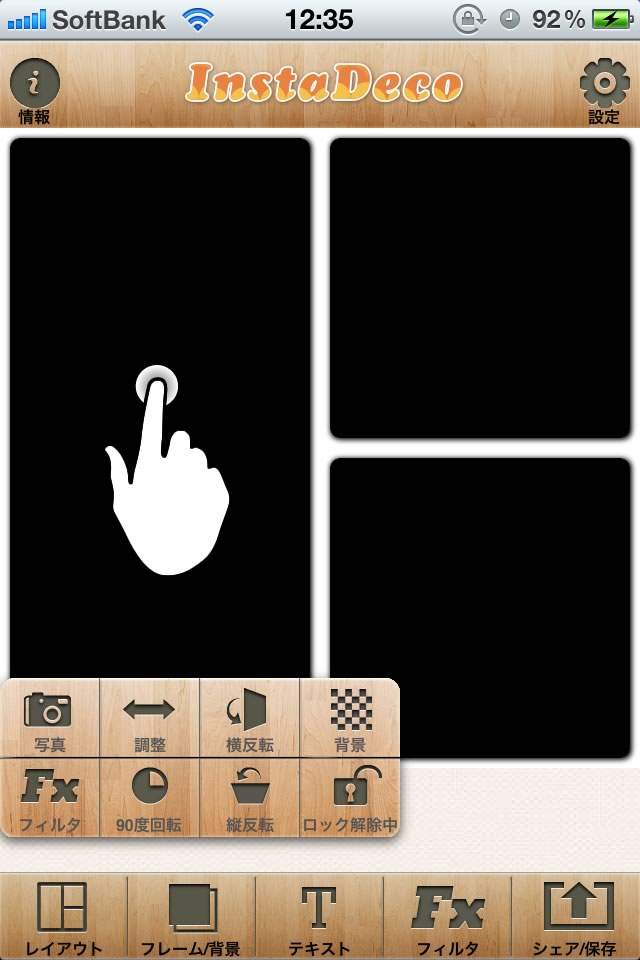
Double tap to show manu
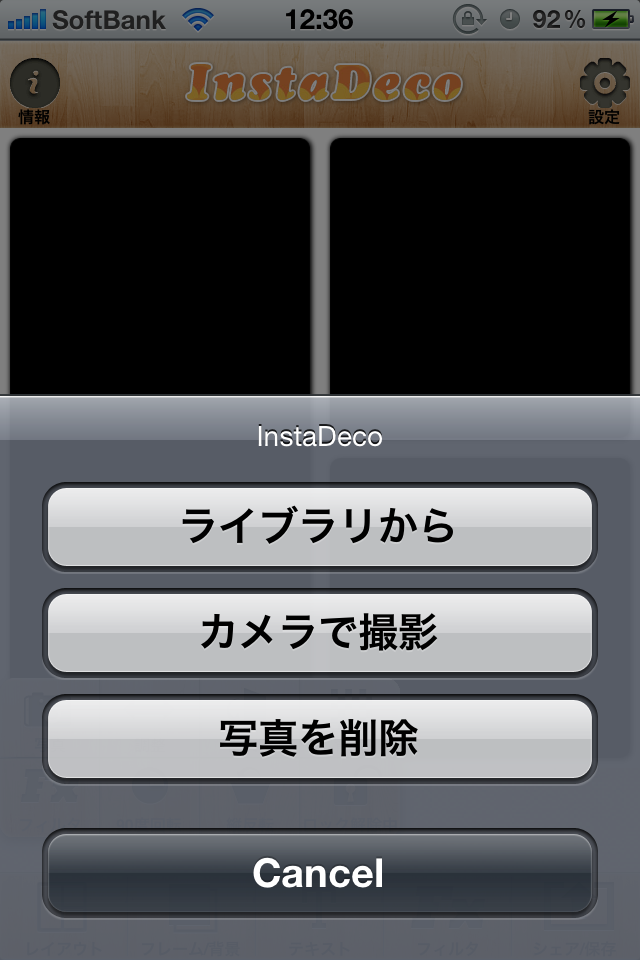
Tap “Photo” on the menu to put a photo
↓
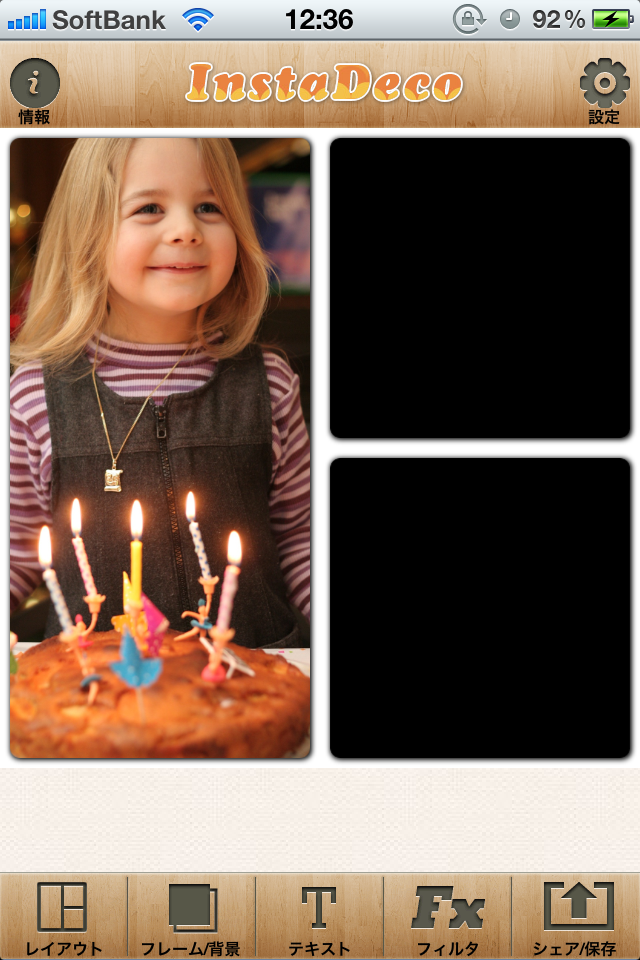
The photo you put can be scale in/out and rotate by pinch.
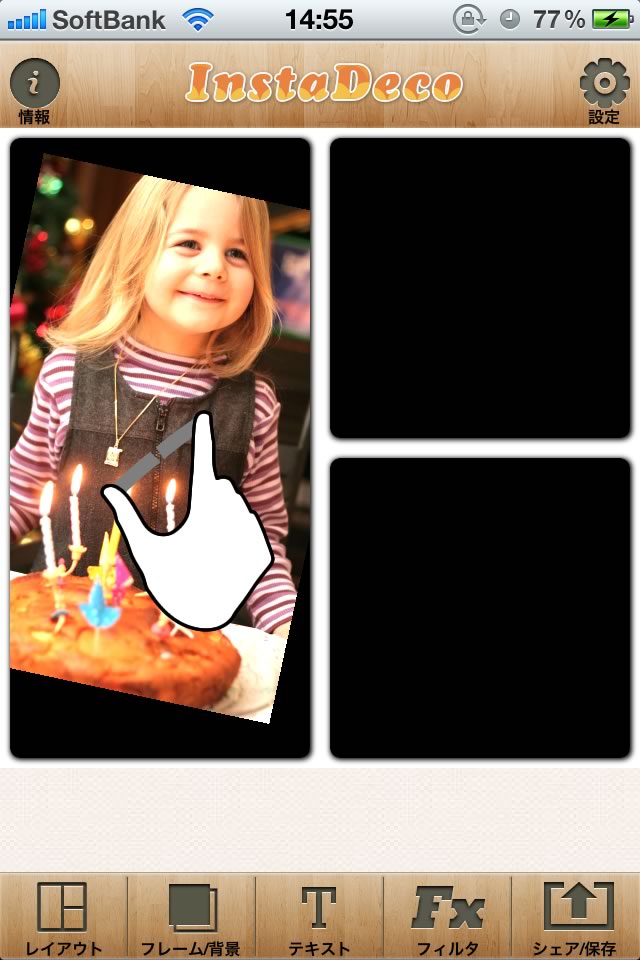
Double tap to show menu again
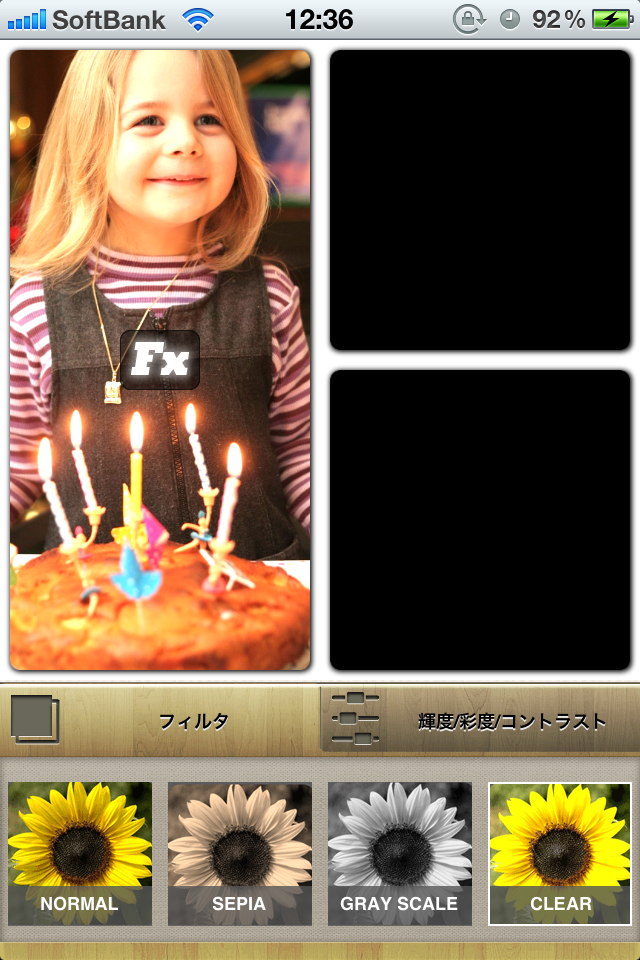
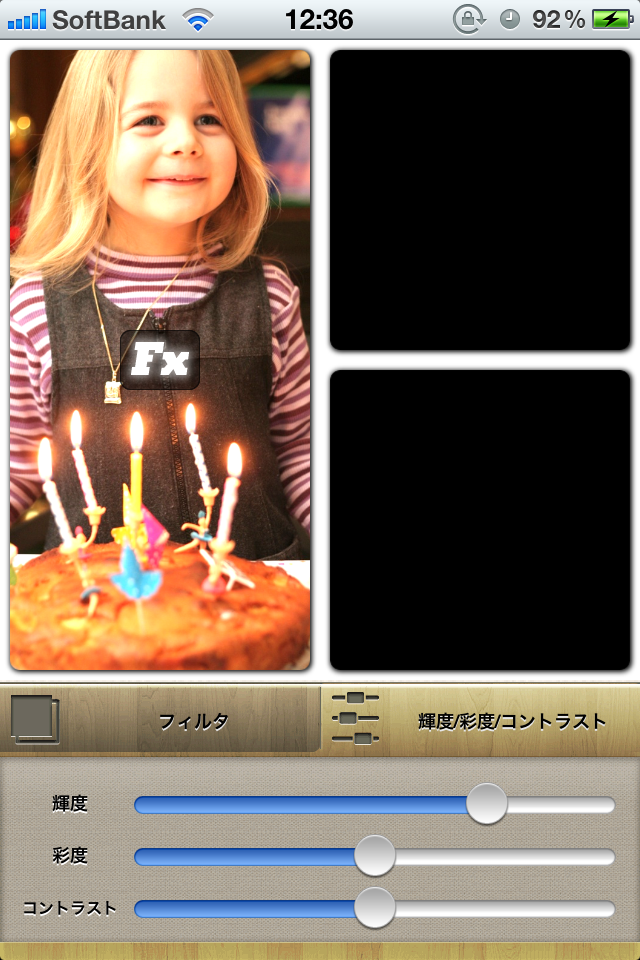
Tap “Fx”, You can set a filter or brightness/saturation/contrast
Set background
Double tap to show menu.
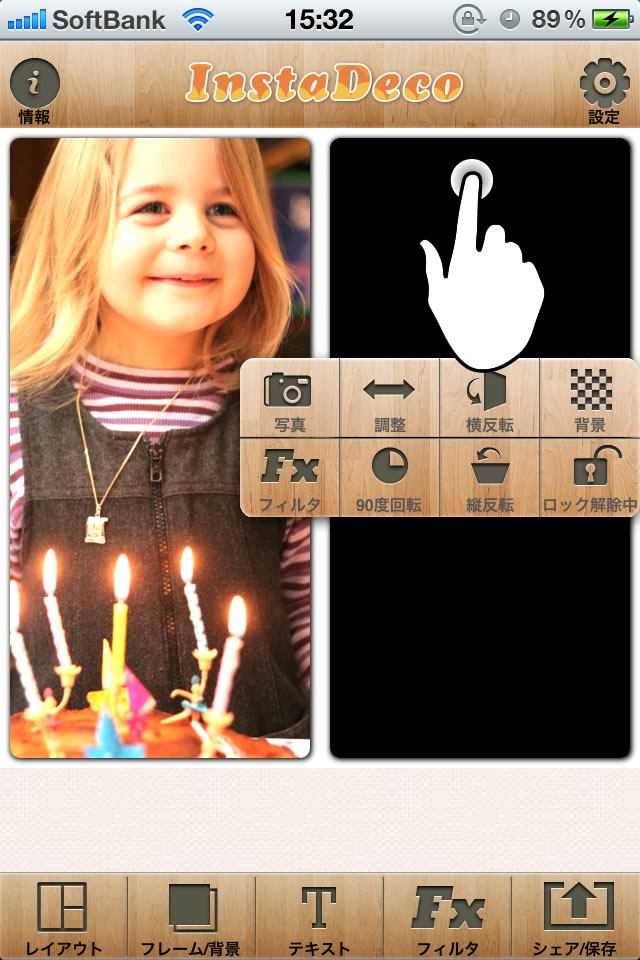
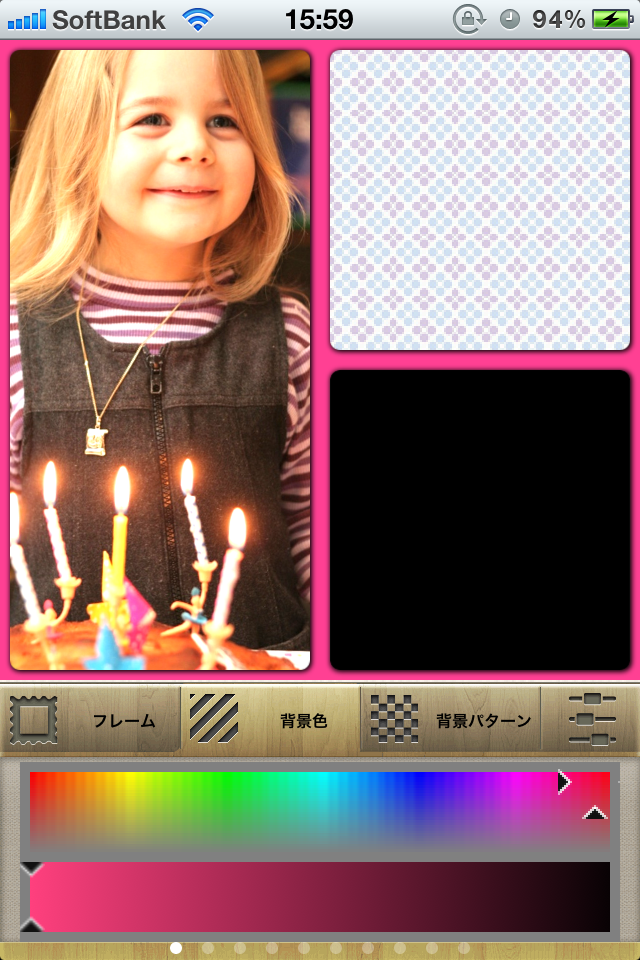
Tap “Background” to show color picker.
And adjust the color.
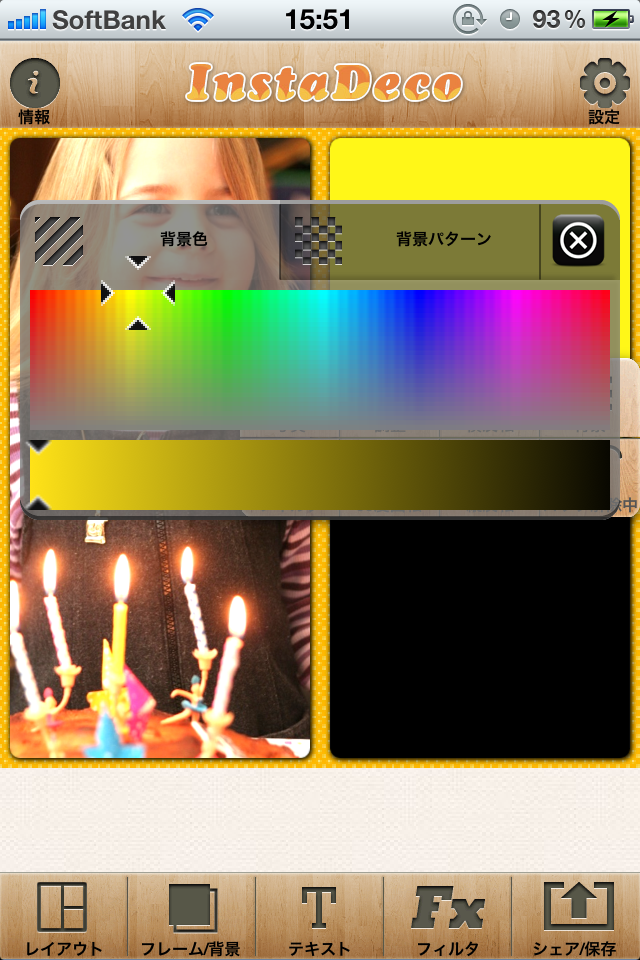
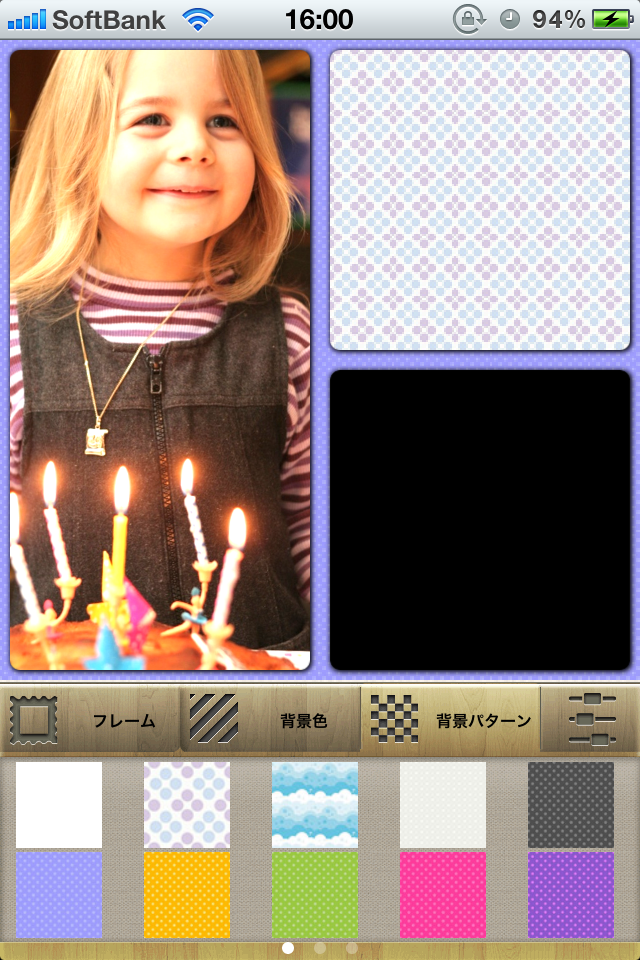
Also you can select the background pattern by “pattern” tab
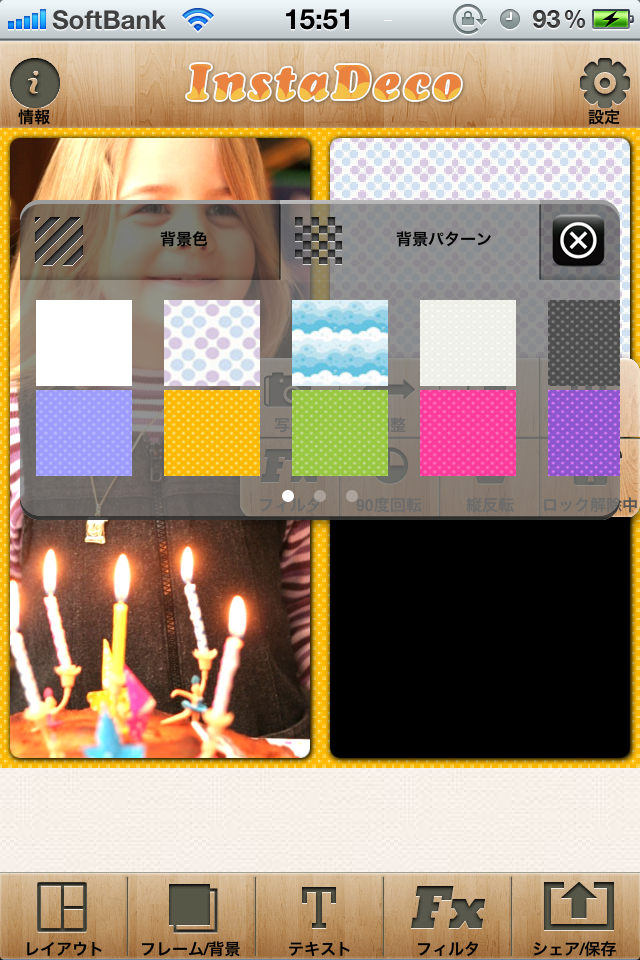
Similarly, by tapping “Frame/Background” of the main menu, you can change the background of the layout.
Set frame
Tap “Frame/Background”
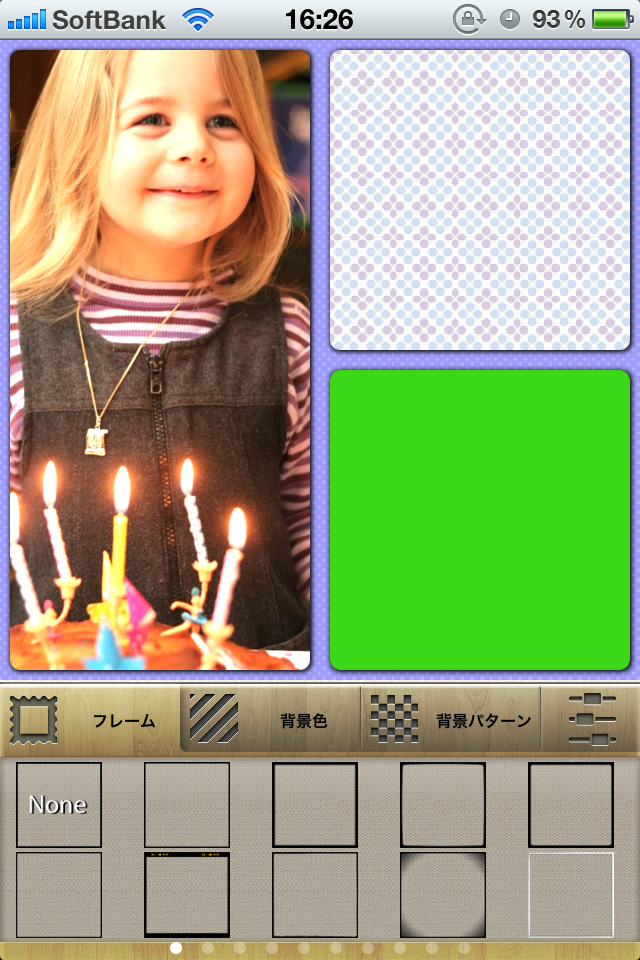
Select a frame
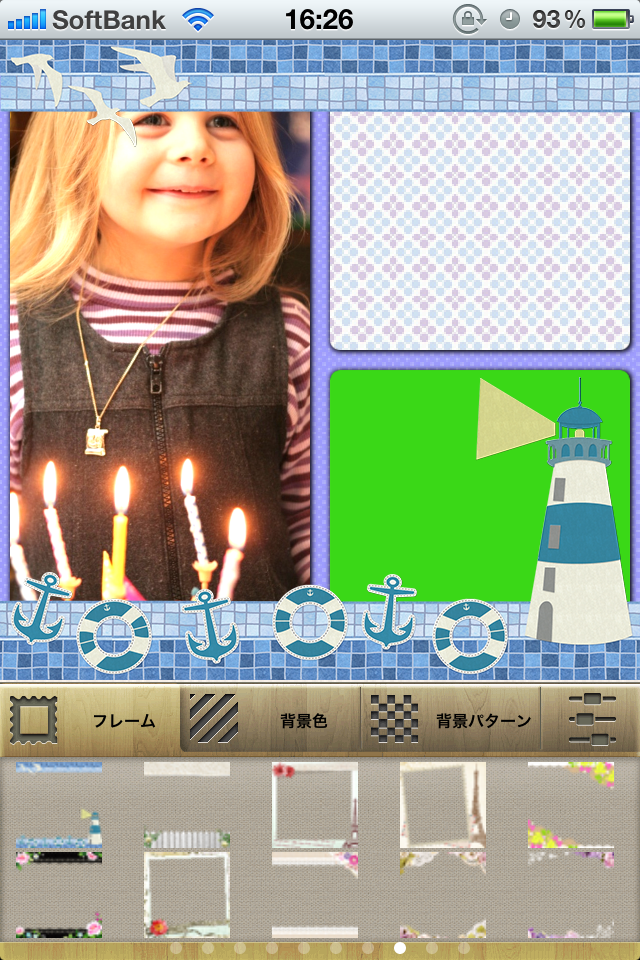
Since the frame is hidden, change the size of the part of the layout.
Double tap to show menu.
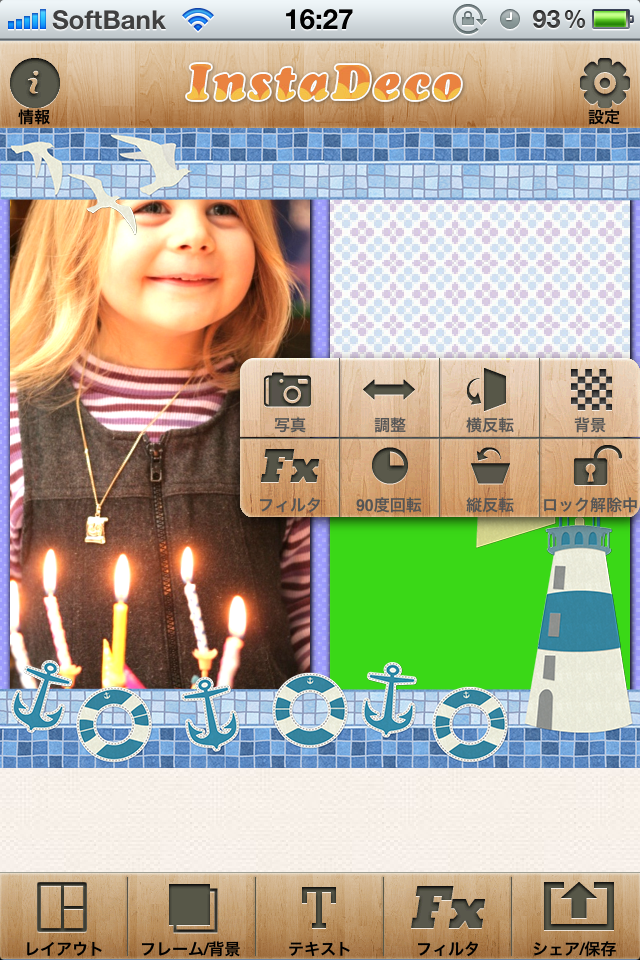
Tap “Adjust” to show arrows.
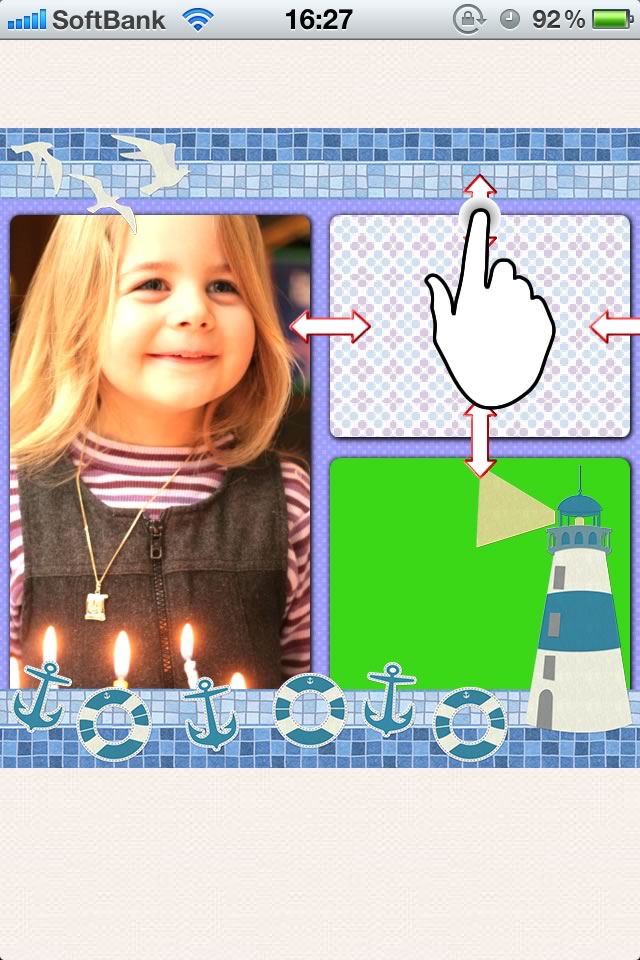
Drag the arrow to change the size of the part of the layout.
Put sticker
Tap “Text” to show “Sticker” button.
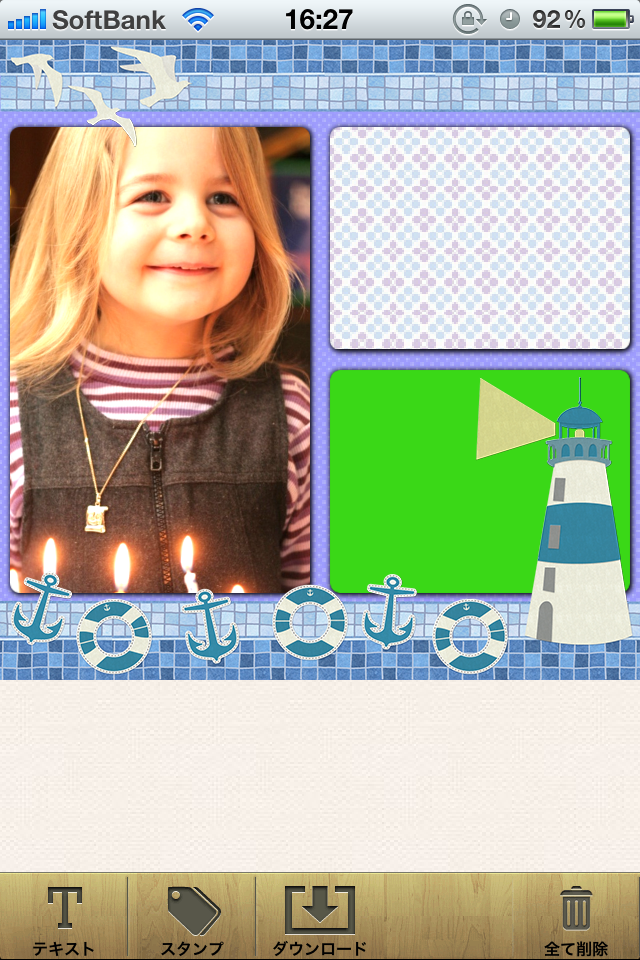
Tap “Sticker” to show the thumbnails is displayed.
And Tap any sticker to put it.
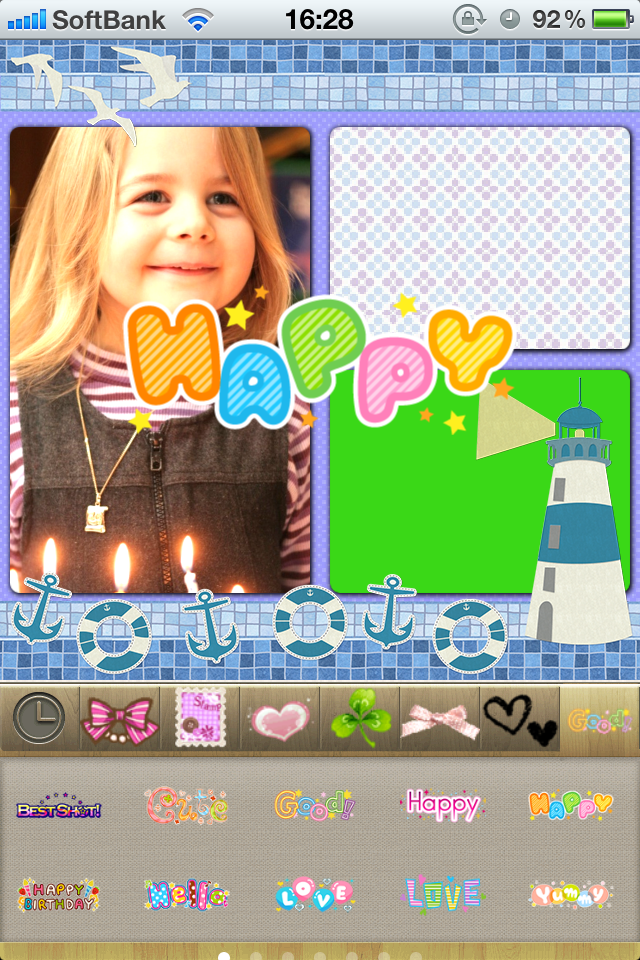
You can drag to move it and pinch to scale in/out, rotate it.
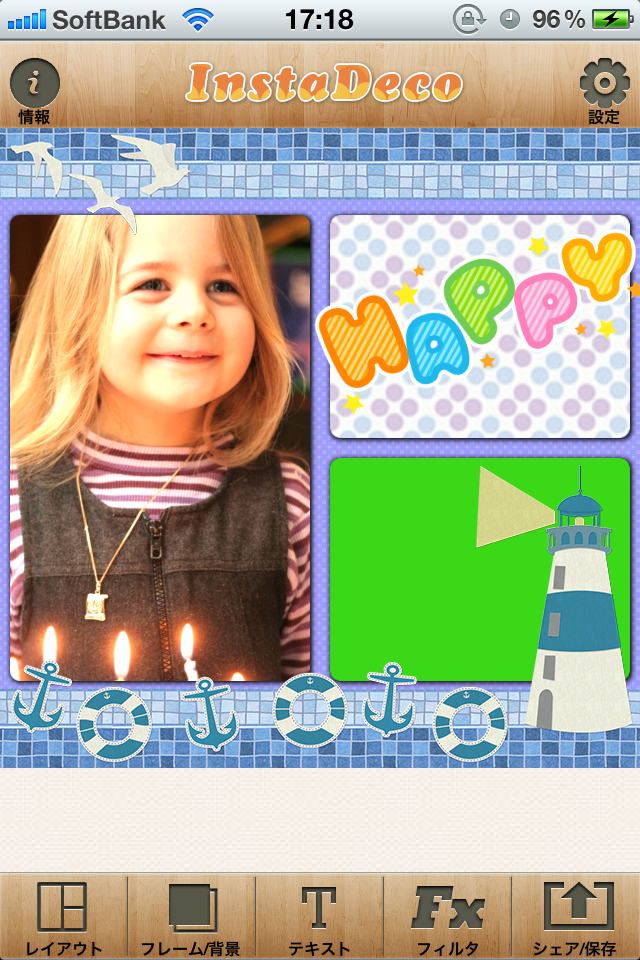
Put text
Tap “Text” to show “Text” button again.
Tap the “Text” button to show the new screen, you can input any text.
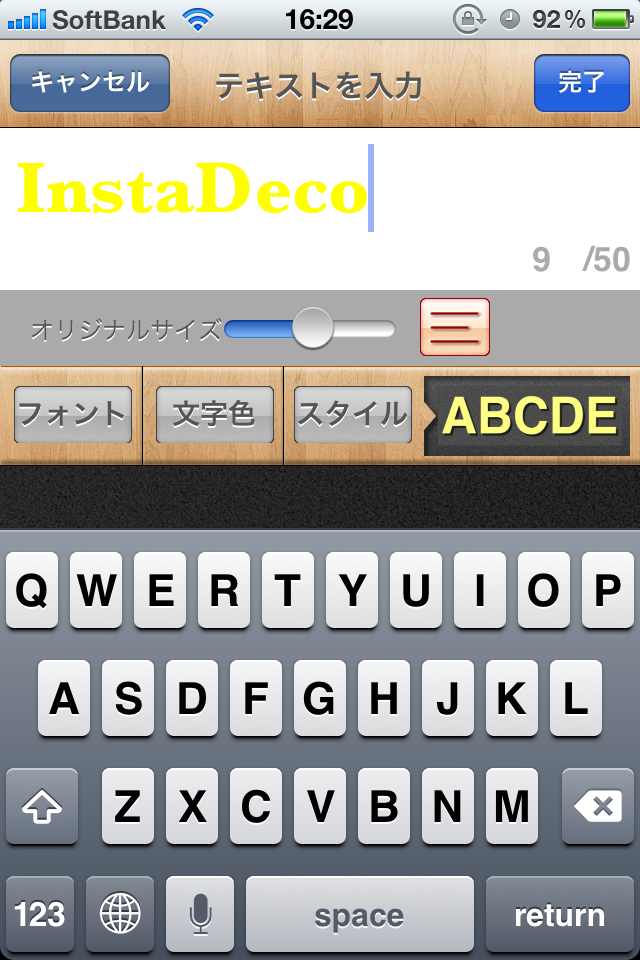
And tap the upper right “Done” button, the text will be put on the screen.
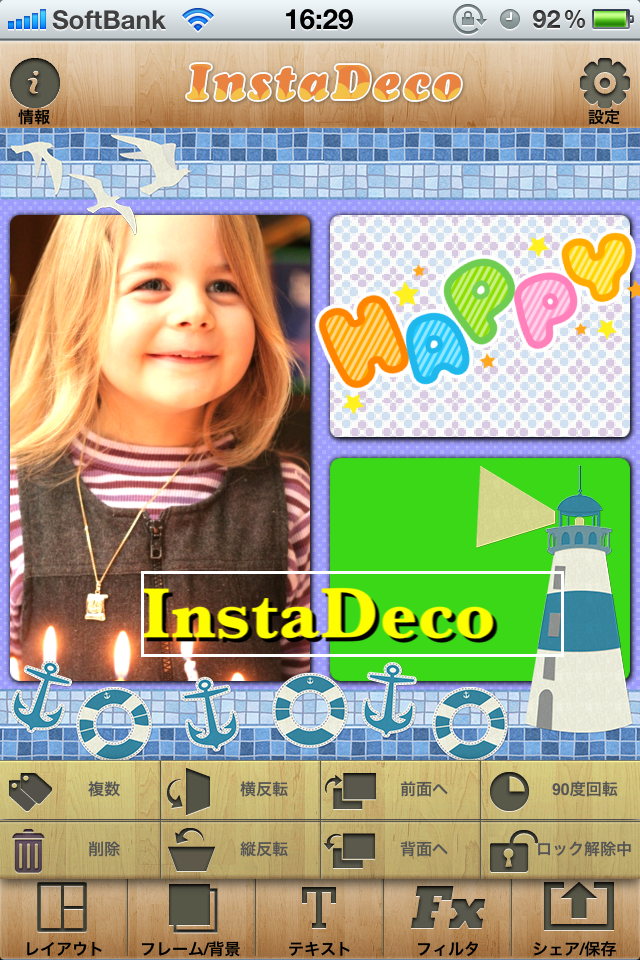
Similarly the sticker, you can drag, scale in/out and rotate it.
Save / Share
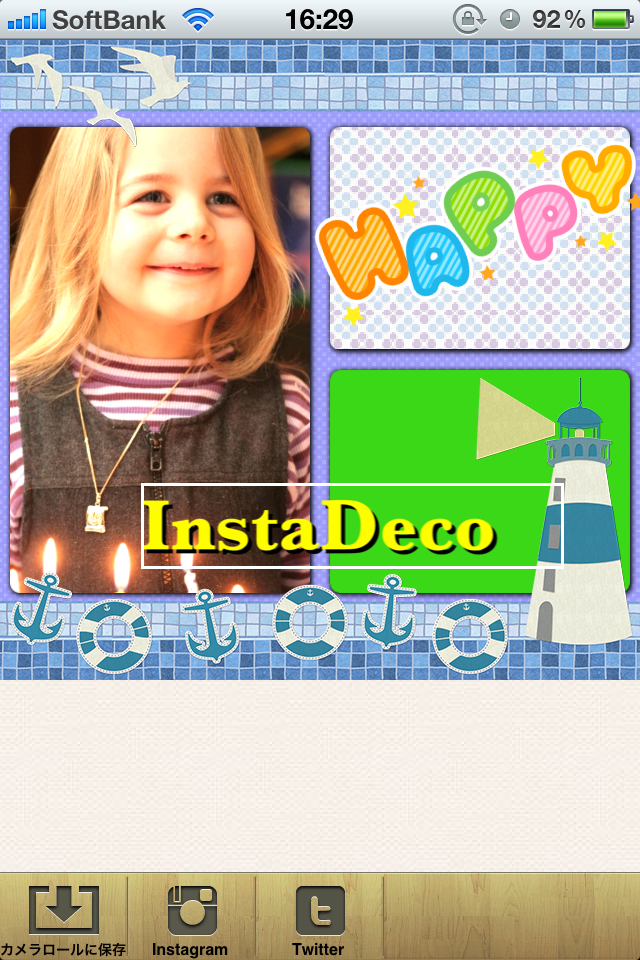
Tap “Save/Share” to show “Instagram”, “Twitter”, you can save or share it.